Tuesday, December 14, 2010

1.3 Million Users Hacked on Sunday. Are you safe?

Sunday December 12, 2010 was another of those wake-up call stories you might hear about most don’t take seriously.  A web server for Gawker (who most average –users don’t even know of) was hacked and 1.3 million usernames and passwords were stolen from their encrypted servers.  Keep in mind, most of the users of this kind of site are technically savvy users, not people who are the normal target for people just wanting to hack your facebook profile.  If you’d like to read about the Gawker hack direct from them,  click here.

We had a user today who had an account on Gawker, not a random person, but someone we actually know and love. Using her stolen email address and password they went to Amazon.com and purchased $400.00 in presents for themselves.

Why YOU Should Care?

Hundreds of other sites, including the New York Times, CNN, CBS, Washington Post, and others use the same protocols on their web sites. ANYONE can read their material for free, but if you want to leave a comment or make a post then you first have to register with an email and a password. Most people consider their New York times password too unimportant to even think about, right? Well, suppose it was Yahoo news, or the NY Times, or any other media outlet you use to communicate with that was hacked. Now they have your email adddress, so they know what your email is, and your password to the site they just hacked. All it takes is a brief second to see if you used that same password on your email account. So let’s say my Gawker account was user@aol.com and my password was 12345678. Now they can simply go to aol.com and enter my email address and try to see if the same password works for that.  Is your email password the same as your other passwords? Guess what… you just became a target.


Who cares if they got my email password?

Don’t even think the damage stops there. Let’s assume we’re still talking about user@aol.com for a minute. So, now I go to www.aol.com and login as that person. I simply open your email and search for “password". What’s the odds that you probably saved your banking password the bank sent you when you first signed up… just in case you forgot it, right? How about your amazon password, or yahoo password? Did you ever email your husband/wife/mother/father/friend and ask them “what’s the password to  our joint bak account again?” Now they’ve stolen your password and your spouses, or friends’ too. If someone has your email, it’s a simple guess to go from there to Yahoo, Gmail, Banking, Amazon, Facebook, etc. Within less than 5 minutes they can change all your passwords, update your shipping address to their address, then start ordering stuff in your name.


Was My Password Stolen?

A company named Slate has written a program to check the database of stolen passwords to let you know if you were one of the users who were affected. Simply to go http://www.slate.com/id/2277768/ and enter your email address in the box on the page. If your email address wasn’t in the database, it will let you know you’re safe (At least from this hack attempt).

So am I safe?

Friday December 10th, 2010: The Walgreens customer database was hacked. They stole all the email addresses of every Walgreens user that had an email address listed.

Sunday December 12th, 2010: Gawker Hacked. 1.3 millions usernames AND passwords stolen. A couple hours later, a “couple hundred thousand” twitter accounts were hacked as a direct result of the information obtained from the Gawker hack.

Monday December 13th, 2010: McDonalds hacked. They got email, phone numbers, birthdays, addresses, and any other specific you shared when you signed up for coupons or whatever.


What Will Happen Now?

Well, after the people involved have sucked every financially profitable piece of information from these millions of users hacked JUST IN THE LAST WEEK, the most likely thing I would do is sell the lists to spamming companies. How valuable is a list of a half a million prescription drug shoppers to companies who want to send prescription drug spam emails? Think about it for a minute.. that’s worth millions right there!


How Can I Be Safe?

The trick to passwords (for the normal human) is keeping it REALLY simple, REALLY convenient, but yet REALLY secure.  Here’s a system I’ve used in the past that works well for any company or web site.

  • Pick a Word
  • Pick a Number (lots of web sites are requiring at least 1 number for your password)
  • Use the company/website you’re on as a reminder.

I’m going to show you an example:

My word will be “shine.” It means nothing to me and it’s short and easy to remember.

My number will be 77. That’s easy. It’s the year I was born. Not likely to forget that one right?

How we use this system:

I’ll do an example using Yahoo.

Starts with a “Y”… that’s our first code.

Shine is our word, the second part of our code.

77 is my number and yahoo has 5 letters in it, so I’m going to deduct 5 from 77 and make it 72

My password for Yahoo would be “yShine72”
First letter of the company or web site, then the code word with the first letter capitalized, then the number.

All you ever have to remember is your own little code.. no need for paper, ever.

Using this, let’s generate a password for a couple web sites to show you the trick of it.

  • Amazon.com
  • BarnesAndNoble.com
  • Progressive.com
  • Gmail.com

The passwords would be

  • a for “Amazon” + Shine +(77-6 letters)71, so the password is aShine71
  • b for “Barnes and Noble" + Shine +63, so the password is bShine63
  • p for “Progressive” + Shine + (77-11 letters for the amount of letters in Progressive)=66, so the password is pShine66.
  • g for “Gmail” + Shine +72 = gShine72

Every password is different, secure, yet you can always remember it.

Want to make it MORE complicated? Ok. Try This. If the website begins with A-M, then you subtract the number from your code number. If it begins with N-Z then you add your number to the code number. It can be as simple or as complex as you want.

Whatever you do, do NOT make your password for email the same as the one you use for generic-web sites. Keep your banking, email, and Facebook passwords completely unique as those are always the most likely targets of hackers.


A True Story:

Our user’s name is Jennifer, a good long time friend of one of our developers here at Remote247.com. Her story on Facebook was what inspired us to write this article to warn others.
Note: Jennifer is actually much smarter about computer security the average user and she got hacked too. If they got to her, they can get to you!

When I woke up yesterday, December 14, my Gmail account was locked out. I had to prove my identity to Google in order to regain access to my account. The only information they had was that they had reason to believe that my account had been compromised. I couldn't imagine how it had been, but I jumped through the hoops and had my account unlocked within the hour. Throughout the day yesterday, I received several e-mails from various sites I've joined over the years informing me that there was a request to change my password, and asking me to verify that. There were also several e-mails from websites letting me know that some of my accounts had been locked.

It was clear to me then that some account, somewhere had been broken into and that my personal information had been compromised. I did not know which account on which website, but something was compromised. I went around and changed all of my passwords on anywhere I could think of, and went about my day. Late last night, there were a batch of very well forged e-mails from a phisher trying to break into my World of Warcraft account. I would have fallen for it had I been willing to click a link about World of Warcraft in an e-mail. The headers were impeccably forged. I'm sure thousands of people lost their accounts.

This morning, I woke up to find just over $400 in goods ordered on my Amazon.com account. Fortunately, none of it had shipped yet, and I was able to cancel everything. I had a slew of e-mails from various accounts that were locked out, including my Facebook. My Gmail account was also locked out again. At around noon, I received an e-mail from Gawker Media informing me of a breach in their security. A group of hackers from 4chan broke into their system and stole the usernames, passwords and associated e-mails of their entire userbase. This was the source of my compromised accounts. I'm going to go over the remaining issues in bullet point form.

  • -I do not use the same passwords across multiple accounts. I have some passwords that are similar to one another, but they are not the same. Once the script kiddies had my username and e-mail address, they were able to obtain my passwords to other sites by brute force.
  • -I have never used any current Gawker Media site. Consumerist.com, a blog I read regularly, used to be owned by Gawker Media. They were purchased by Consumer Reports last year, and my username and password was in the Gawker system from when Consumerist was owned by them.
  • -I did everything a security expert (And common sense) would recommend for keeping your online accounts secure. Some would suggest using a different e-mail address for every single account you open, but as a general rule, it's not something that's usually done. The fault in this issue lies entirely with Gawker Media for failing to secure their servers and database to standard levels.
  • -Gawker Media was aware that they were a target of /b/ nearly a week ago. Rather than alert their userbase and lock down their systems, they ignored this. Furthermore, once the breach occurred, they failed to notify their users until over 24 hours later. It's my understanding that something was posted on their website, but I don't visit their website. It wasn't until today that they sent out an e-mail letting people know what was going on.

The lessons to learn from this is as follows:

  • -Even when you do everything you can to secure your passwords and online identity, it's ultimately up to the websites you register on to ensure that your data can be trusted. If they have lax security, any measures you take are pointless, aside from one.
  • -The only guaranteed way to keep everything online secure is to use a different e-mail address for everything you do online. Keep your bank accounts under one address, your e-mail under another, your social media accounts on another, and things you don't care about under another. This way, if one thing is breached, there's no way for a hacker to get to other things.

Thursday, December 09, 2010

HDD Plus - What it is and How to Remove it


HDD plus was first reported to us on December 8th, 2010. It is a new variant of an old virus, meaning it's got a fancy new face but does the same bad stuff the previous versions used to. You might also have been infected with this under the names Hard Drive Diagnostic, HDD Scan, Win Defragmenter, Win HDD, Check Disk, Ultra Defragger, or Quick Defragmenter.

NONE of these are what they appear to be. They are a virus, and while not horribly destructive they are definitely annoying and hard to remove.

How do I know I'm infected?

HDD-Plus-Warnings-Screenshot.png

This is the image displayed on computers infected with HDD Plus. The goal of the virus is to convince you that you have some hard drive damage and then to click on any of the tools or links offered to repair the problem. None of these tools do what they say they do. Do not click on them if you haven't already!

Removal of HDD Plus

We usually make it our goal to try to give you viewers an easy way to rid yourself of these viruses. This one isn't especially hard to remove if you're not overly infected, but it does take some skill, so chances are the average user can't remove it on their own.

Why Not:
The virus always load in the same place, but not always with the same name. Different computer configurations store the temporary internet data in different folders. Without knowing which user account on your computer is infected, we couldn't easily tell you which directories to clean out.
For example the virus infects the following locations:
%TempDir%\[random]
%TempDir%\[random].exe
%TempDir%\[random].dll
%TempDir%\dfrg
%TempDir%\dfrgr
%TempDir%\Windows Update.exe
%Desktop%\HDD Plus.lnk
%Programs%\HDD Plus
%Programs%\HDD Plus\HDD Plus.lnk
%Programs%\HDD Plus\Uninstall HDD Plus.lnk

Doesn't look that easy to a regular computer user does it? Unfortunately it's not. However, it's a pretty standard removal for a good computer technician. If you have a technician you already rely on, print this page and give it to them with your computer when you carry it in for repair.

Having said that, here is what we can tell you.

(If you're a technically savvy user, you can remove it using this information. If this information doesn't make sense to you or you are intimidated by making system-level repairs, we suggest you contact a computer company to remove the virus for you.)

Information about HDD Plus:
-HDD Plus is usually executed in the temporary internet files directory, so if you can get those files purged, you can usually prevent the virus from loading. If it's already resident, and it probably is, we suggest rebooting into safe mode, deleting those files, then restarting in normal mode and running a malwarebytes scan. This should remove the startup entries from the registry. Spybot also seems to be able to remove it, though we haven't tested that theory ourselves.

- HDD Plus seems to prevent the task manager from loading, however it has no effect on MSCONFIG. Run MSCONFIG, uncheck the startup items launching in the temp directories on the computer, then press Apply and then perform the restart when prompted by MSCONFIG. This will allow the system to boot clean and you can then remove it as described above.

If you are NOT a technically savvy user, we suggest you consider our Remote 247 Solution for removing this virus as well as other computer needs.

How to Download and Run a Malwarebytes Scan


Malwarebytes is a great program for getting rid of malware on your computer. Notice we didn't say viruses. Malware and Viruses aren't the same thing. They have some of the same symptoms but are two different animals altogether. Most antivirus programs won't get rid of malware and malwarebytes won't get rid of viruses.

If you're reading this, you most likely have a malware infection and need to know how to use the program. We're going to walk you through the entire process (its a simple one) from beginning to end.

Any user, novice to advanced, can use this guide to remove malware from their computer using malwarebytes.

1) Visit www.malwarebytes.org

1.png

Open your internet browser and go to www.malwarebytes.org. The website should something similar to the picture above.
Click the blue box to "Download Free Version."

2) Get the file from Cnet

2.png

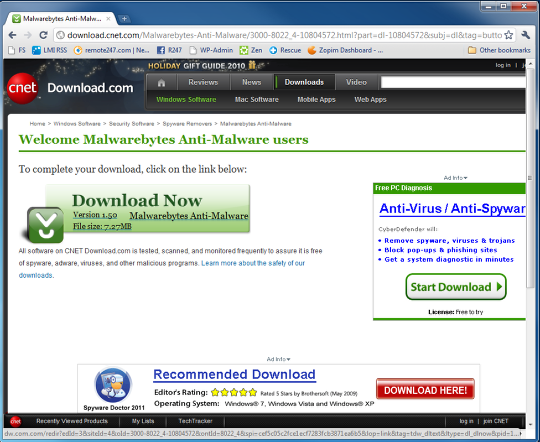
Malwarebytes creates the product, but they can't afford for hundreds of thousands of people to download it from their website, so they will likely redirect you to a site similar to this one shown above. That's ok. It's expected and not hard to use. Just click the green Download Now icon from CNET.

Each browser acts differently when you download a program. Follow the instructions in the next step depending on your browser.

2 a) Downloading Malwarebytes using Internet Explorer 8.0

IEdownload.png

When you visit the download page you will most likely see something like this on screen.
1) Click the blue bar at the top of the screen.
2) Click Download File
This will refresh the page and allow you to safely download the program.

2a Continued) Download the file using Internet Explorer 8.0

ie2.png

If you want to save the file to your computer for later, you can choose "save" and choose a location to save the file. However if you're not familar with saving files off the Internet, you can just choose RUN and the program will download and run all as one process.
Once you've done this, skip ahead to Step 3 below.

2b) Download Malwarebytes using Google Chrome

download-chrome.png

If you're running Google Chrome as your browser you are probably already familiar with how it saves files. Just in case you're not, here's what you do:
1) The download should automatically start.
2) Anytime Google Chrome downloads a file it always puts it at the bottom of your screen for easy access. Simply press Save and you will see the icon appear and start to glow with a green circle. Once that's done and it's no longer flashing green, just click the icon in your task bar (the bar at the bottom currently highlighted in red) to open the setup and skip ahead in this tutorial to Step 3.

2c) Download Malwarebytes using Mozilla Firefox

firefox.png

If you're using this browser, there's a good chance you're a fairly savvy internet user so you'll already know what to do here. Simply press Save and then open the program once the download is complete.
Skip to Step 3 in this tutorial next.

3) Installing Malwarebytes

3.png

Whether you saved the program or ran it from your internet browser, you'll be prompted with this screen.
Press OK.

Note: Starting at this point all you're going to do is either click the Next button with your mouse 8 times or just press the Enter Key 8 times. If you don't want to be bored with the details, just press Enter 8 times and skip ahead to Step 12.

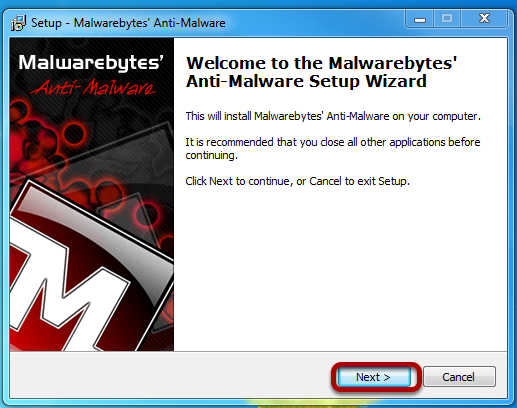
4) Welcome to the Malwarebytes Anti-Malware Setup Wizard

4.png

Just press Next.

5) Accept the License Agreement

5.png

1) Choose "I accept the agreement" by clicking the box beside it.
2) The press Next.

6) Read more info

6.png

Just press Next again.

7) Select Destination Location

7.png

Just press Next again.

8) Select Start Menu Folder

8.png

Just press Next again.

9) Select Additional Tasks

9.png

Just press Next again.

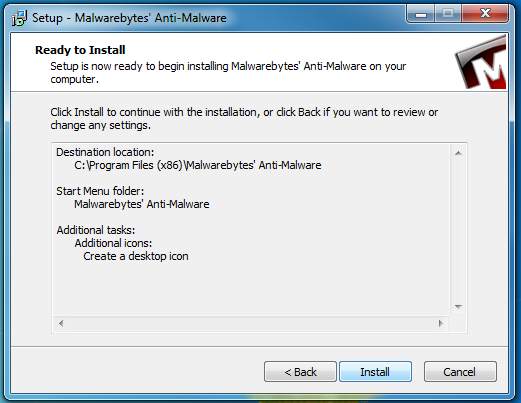
10) Ready to Install

10.png

You're finally ready. Press Install to continue.

11) Installing

11.png

This is the progress you should see as the program installs. No need to press anything here.

12) Setup is Complete

12.png

You have now successfully installed Malwarebytes Anti-Malware.
1) Check the box to Update the program.
2) Check the box to Launch the program.
3) Then press Finish

13) Running updates

13.png

New viruses and new malware are created each day. Malwarebytes keeps a "dictionary" (for lack of a better word) of bad programs, trojans, and malware back at it's server located on the web.

Right now your program is calling back home and asking for all the updated new programs and malware versions that have been released since the program was created a couple of months ago so it knows what to look for when it scans your computer.

Pretty neat if you think about it... just wait until it finishes. Depending on your internet connection it could take up to 2 minutes or so.

14) Updates Complete

14.png

Apparently there were some updates available for our installation, even though we only downloaded the program 15 minutes ago for the first time. Now malware bytes knows all about the new malware and can scan your computer for infections. Press OK to continue.

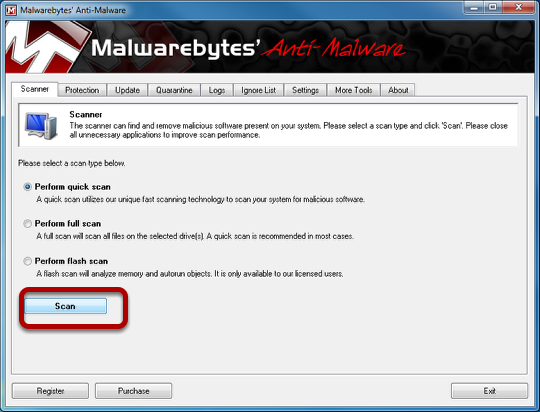
15) Getting Ready to Run your First Scan

15.png

Ok. Pay close attention here. There a few tricks to make this go faster and smoother, so we'll show them to you.
1) Perform a Quick Scan first by making sure that button is checked and pressing Scan (highlighted above).
Why? There are literally millions of files on your computer, but only a few hundred thousand are being accessed at any one time normally. If a program is "running" it's considered to be "in memory" or active right now. A quick-scan ignores most of the files on your computer and concentrates on files that are actively in use and on your registry. If a piece of malware is actively causing you problems, then it's running right now and this will find it quickly. A quick scan will take from 5 minutes up to an hour. A Full Scan will take hours to run, even on a fast computer.

Once you complete the quick scan your computer will probably have found some malware to remove.

16) Scan Completed

file_found.png

This is what a scan looks like when it has completed if Malware was found on your computer.
1) Press OK to close the information window.
2) Press Show Results to see what was found and prepare to remove it.

17) Infections Found. Now To Remove Them

Malwarebytes_Anti-Malware_Results.png

This is an example of what your screen would look like if Malwarebytes detects malware on your computer.

There are three important pieces of information here you want to know and another step that might make things easier if you DO have to call a computer technician.

1) The name of the Trojan, Malware, or other bug. This is the "Brand" of the infection.
2) What it has infected. Did it infect a fie on your computer or did it infect the registry? (the brain of the computer).
3) Where exactly in the computer is the infection located?
4) Saving a log file to your desktop will create a text copy of EVERYTHING it located and deleted, so you can refer back to it later if there's still problems.

Once you're ready, press Remove Selected and it will start cleaning the files from your system.

Note: In our experience Malwarebytes hasn't ever removed a needed system file. It's done great for us for for our customers at only deleting files that are causing problems. It is our opinion that you can safely remove ANYTHING it tells you is infected.


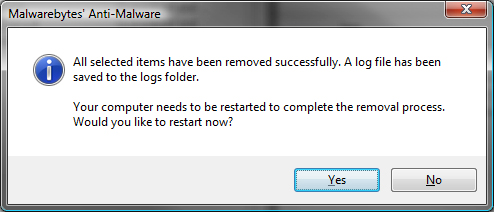
18) Restarting the Computer

Malwarebytes_Anti-Malware_Restart.png

Once Malwarebytes has removed the infections it will want to reboot the computer. This means your computer will restart WITHOUT all these infected files slowing it down or causing problems. We strongly suggest you reboot at this time.
Simply press Yes to reboot immediately.

19) After Restarting (You're not done yet)

15_1.png

Once you've restarted your computer, open Malware Bytes one more time. Now we're going to run a FULL scan. You do everything exactly the same as on Steps 15-18 except you choose Full Scan not Quick Scan.

Why:
Well your infection came from somewhere, right? Smart viruses and trojans don't actually infect you themselves. Instead they are hidden somewhere deep in your system and lie quietly most of the time. Every once in a while they wake up, create a copy of themselves and hide it in your system where it will execute again, then they go back to sleep. These are knows as self-replicating infections. Another kind of infection is a "morphing" infection.

Morphing infections actually copy themselves contiuously, each time giving themselves a new name, and creating more and more copies of themselves in the system. They operate just like a cancer infection, spreading throughout the computer's file system.

Running a full scan of your computer will scan every single file on the computer, but it's going to take quite awhile. Usually we suggest running this one at night before you go to bed, then coming back in the morning to see the results.


Additional Note about Antivirus Scanners.

antivirus_threat.png

Once you start running malware bytes you might also start seeing your Antivirus program start to go crazy as well. Here's why:
Your antivirus program scans most of the time for common threats but not ALL the time, or your computer would be slowed down too much. That's why it performs scheduled scans, usually at night.

Malwarebytes is now actively opening every single file on the computer. (Think of it as some stranger sneaking in your office and rifling through EVERY file you have in your entire office or house.)
This kind of activity makes your antivirus wake up and go check on what's going on. (Think of a security guard coming in and flicking on the light switch and yelling "Hey! What are you doing in here?")
Malwarebytes just ignores your antivirus and continues to search through files, looking for infections and paying no attention to your antivirus program.
Your antivirus program starts to look at what Malwarebytes was doing and stops and says ( "Oh.. look at that. That's an infection. Crap. How could I have missed that in my sweep? I'd better get that outta here before the boss finds out!!")

If you get these kinds of popups (like the one shown above) it's up to you to either A) Let malwarebytes remove the infection when it's done or B) let your antivirus program remove the infection right now while it's noticing it.
If you choose to let your antivirus program remove the infection, malwarebytes might report an error when it tries to remove the infection itself because between the time it located it and the time it reported back to you, you had already deleted the infected file. That's ok and won't cause any problems. Just as long as your computer is cleaned up! That's the goal here.

We hope you have found this tutorial helpful! If you like what you've seen here, please leave a comment! We enjoy knowing other have found the material useful!